


Web Scraper API
Fetch real-time data from 100+ websites,No development or maintenance required.
SCRAPING SOLUTIONS
Get accurate and in real-time results sourced from Google, Bing, and more.
With 120+ prebuilt and custom scrapers ready for any use case.
No blocks, no CAPTCHAs—unlock websites seamlessly at scale.
Execute scripts in stealth browsers with full rendering and automation
PROXY INFRASTRUCTURE
Over 100 million real residential IPs from genuine users across 190+ countries.
Reliable mobile data extraction, powered by real 4G/5G mobile IPs.
For time-sensitive tasks, utilize residential IPs with unlimited bandwidth.
Fast and cost-efficient IPs optimized for large-scale scraping.
SCRAPING SOLUTIONS
PROXY INFRASTRUCTURE
DATA FEEDS
Full details on all features, parameters, and integrations, with code samples in every major language.
LEARNING HUB
ALL LOCATIONS Proxy Locations
TOOLS
RESELLER
Get up to 50%
Contact sales:partner@thordata.com
Products $/GB
Fetch real-time data from 100+ websites,No development or maintenance required.
Get real-time results from search engines. Only pay for successful responses.
Execute scripts in stealth browsers with full rendering and automation.
Bid farewell to CAPTCHAs and anti-scraping, scrape public sites effortlessly.
Dataset Marketplace Pre-collected data from 100+ domains.
Over 100 million real residential IPs from genuine users across 190+ countries.
Reliable mobile data extraction, powered by real 4G/5G mobile IPs.
For time-sensitive tasks, utilize residential IPs with unlimited bandwidth.
Fast and cost-efficient IPs optimized for large-scale scraping.

Data for AI $/GB
Pricing $0/GB
Docs $/GB
Full details on all features, parameters, and integrations, with code samples in every major language.
Resource $/GB
EN $/GB
产品 $/GB
AI数据 $/GB
定价 $0/GB
产品文档 $/GB
资源 $/GB
简体中文 $/GB


.iqy). The modern standard is Power Query (“Get & Transform”), which supports JSON parsing and automatic table detection.For decades, the “From Web” button in Excel was a simple tool that tried to guess where tables were on an HTML page. It was clunky, often broke, and couldn’t handle anything complex.
In 2026, data analysis has changed. We aren’t just scraping static HTML tables anymore; we are connecting to REST APIs, handling JSON streams, and dealing with authentication. While many tutorials still teach the old “Legacy Web Query” method, it is time to move on.
In this guide, I will show you how to use Power Query to act as a legitimate web scraper, capable of handling headers and API keys—things the legacy tool could never dream of.
If you are looking for the old interface where you clicked little yellow arrows next to HTML tables, you might notice it’s gone. Microsoft has hidden it deep in the settings (File > Options > Data > Show legacy data import wizards).
Why you should stop using Legacy Web Queries:
The Solution: Power Query. It is built into Excel (Data > Get Data > From Web). It uses a powerful functional language called “M” to transform data.
Let’s start with a simple example: pulling a static table from a website.
1. Go to the Data tab on the Ribbon.
2. Click From Web.
3. Enter the URL (e.g., a Wikipedia list of currencies or a stock ticker page).
4. Excel will analyze the page and present a “Navigator” window showing detected tables.
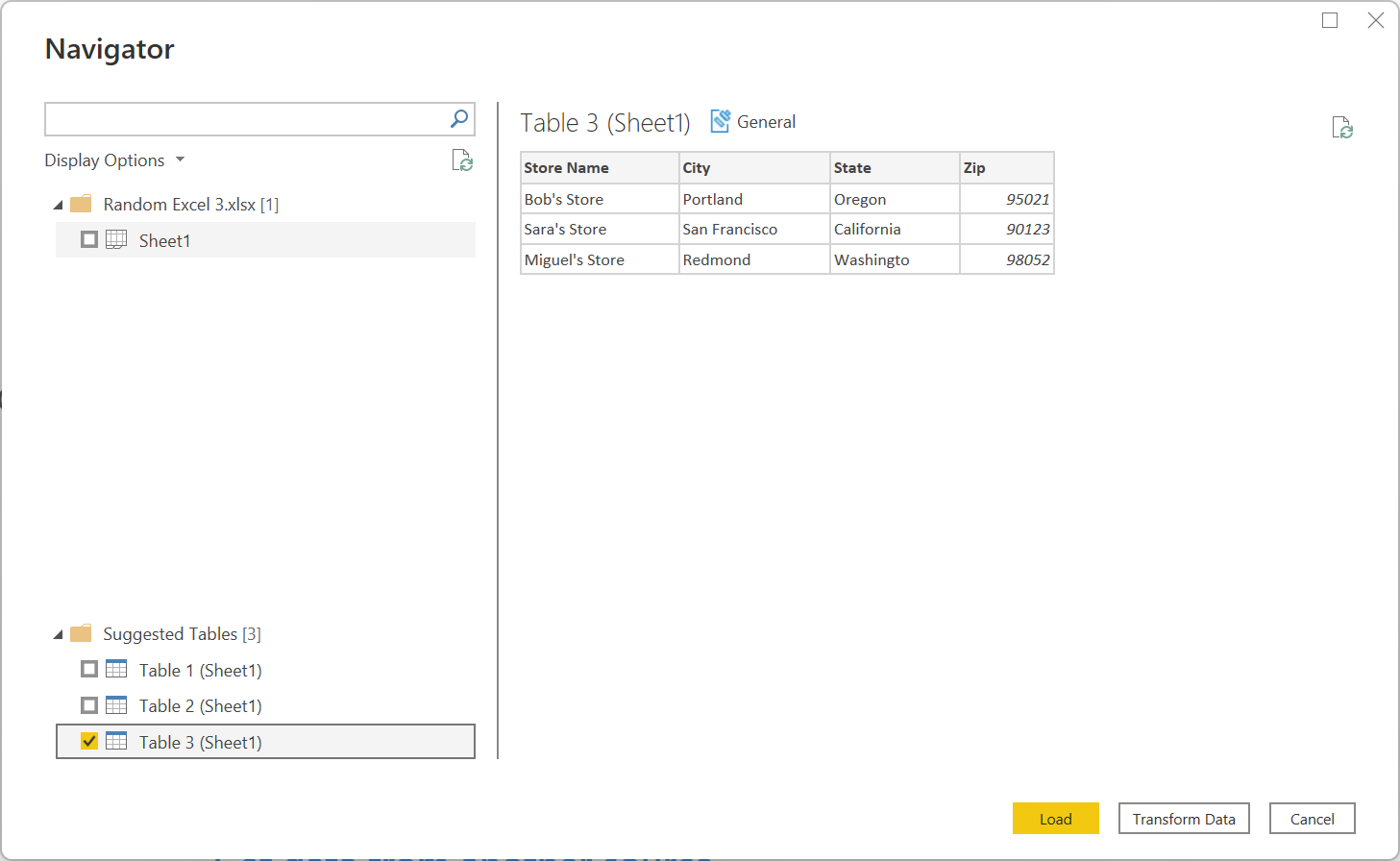 Figure 1: Power Query automatically detects HTML
 <table> tags.
This is where most analysts get stuck. If you try to connect to an API that requires an Authorization header or a specific User-Agent, the standard “From Web” dialog box doesn’t give you an option to add them.
You must use the Advanced Editor.
Imagine you want to pull data from a protected API endpoint. You need to send an API Key.
1. Start a “From Web” query but click Advanced instead of Basic.
2. Or, create a blank query and open the Advanced Editor.
Here is the M Code to make an authenticated request:
let
    // Define the URL
    url = "https://api.example.com/v1/data",

    // The Secret Sauce: Adding Headers using Web.Contents
    source = Web.Contents(url, [
        Headers = [
            "Authorization" = "Bearer YOUR_API_KEY",
            "User-Agent" = "Excel-PowerQuery/2026",
            "Accept" = "application/json"
        ]
    ]),

    // Parse JSON Response
    json = Json.Document(source),

    // Convert List to Table
    table = Table.FromList(json, Splitter.SplitByNothing(), null, null, ExtraValues.Error)
in
tableUsing Web.Contents is the only way to reliably pass headers. If you receive a “403 Forbidden” error when scraping a public site, try adding a User-Agent header mimicking a real browser (e.g., “Mozilla/5.0…”).
Excel’s Power Query engine is not a web browser. It does not execute JavaScript. If you try to scrape a site built with React, Vue, or Angular, Excel will just see the empty <div id="root"></div> shell.
To solve this, you need a Middleware—a service that renders the JavaScript for you and passes the clean HTML back to Excel. This is where Thordata SERP API becomes essential.
Instead of connecting Excel directly to the target website, you connect it to Thordata’s API endpoint. We do the heavy lifting (rendering JS, rotating proxies) and return clean JSON that Excel loves.
let
    // 1. Target URL (The site you want to scrape)
    TargetURL = "https://www.amazon.com/dp/B08N5KWB9H",

    // 2. Thordata API Endpoint with your Token
    // Note: We use Query parameters to pass the target URL safely
    Source = Json.Document(Web.Contents("https://scraperapi.thordata.com/request", [
        Query = [
            url = TargetURL,
            token = "YOUR_THORDATA_SCRAPER_TOKEN",
            render_js = "True" // Force JS Rendering for dynamic sites
        ]
    ])),

    // 3. Navigate the JSON structure (e.g., getting the 'html' field)
    Data = Source[html],
    Result = Table.FromRecords({[Content = Data]})
in
ResultIf you are simply pulling a few stock prices for a personal dashboard, your local IP is fine. But if you are trying to refresh 5,000 rows of product data every hour, the target website will ban your office IP address.
Excel does not have native support for rotating proxies. You cannot set a proxy in the “Data Connection” settings easily.
This is why using an API solution is superior for enterprise Excel usage. By routing requests through Thordata Residential Proxies (via the API method above), every single row in your spreadsheet appears to come from a different residential user, making your scraper unblockable.
The era of the “Legacy Web Query” is over. Modern data analysts use Power Query combined with robust APIs. By mastering the M language for custom headers and understanding when to use an external rendering service, you can turn Excel into a legitimate data ingestion engine.
For more details on the Power Query M formula language, check the official Microsoft Documentation.

Frequently asked questions
Where is the ‘Web Query’ button in Excel 365?
Microsoft has moved the legacy Web Query tool to a hidden menu (File > Options > Data > Show legacy wizards). The modern standard is ‘Data > Get Data > From Web’, which uses the Power Query engine.
How do I add an API Key in Excel Power Query?
You must use the Advanced Editor. Use the ‘Web.Contents’ function and pass a record with a ‘Headers’ field containing your ‘Authorization’ or API key.
Can Excel Power Query scrape JavaScript sites?
No, Excel cannot execute JavaScript. To scrape dynamic sites (SPA), you must route the request through an external rendering service like Thordata’s SERP API.
About the author
Kael is a Senior Technical Copywriter at Thordata. He works closely with data engineers to document best practices for bypassing anti-bot protections. He specializes in explaining complex infrastructure concepts like residential proxies and TLS fingerprinting to developer audiences. All code examples in this article have been tested in real-world scraping scenarios.
The thordata Blog offers all its content in its original form and solely for informational intent. We do not offer any guarantees regarding the information found on the thordata Blog or any external sites that it may direct you to. It is essential that you seek legal counsel and thoroughly examine the specific terms of service of any website before engaging in any scraping endeavors, or obtain a scraping permit if required.
 Looking for
Top-Tier Residential Proxies?您在寻找顶级高质量的住宅代理吗?
Looking for
Top-Tier Residential Proxies?您在寻找顶级高质量的住宅代理吗?
YouTube Dataset Comparison by Research Goal
Compare YouTube datasets by the research task, record type, available fields, refresh cadence, access method, cost, and reuse terms. The guide contrasts fixed research datasets with Thordata, Bright Data, and Apify options.
Unknown
2026-10-27
YouTube Dataset Providers: Ready-Made vs Custom
The guide compares Thordata, Bright Data, Apify, and Oxylabs by access model, YouTube fields, delivery, refresh options, and billing units. It recommends checking sample records and delivery terms before purchase.
Unknown
2026-10-27
How to Choose an Enterprise Video Data Provider
This guide compares search-result data, structured video records, and media delivery. It describes the fields, delivery terms, and pilot checks buyers can use to evaluate providers.
Unknown
2026-10-27
How to Get YouTube Transcripts Programmatically
This guide compares the official captions API, a Python transcript library, and managed scraping for retrieving YouTube captions. It covers missing captions, batch processing, and storing transcript text with timing and language.
Unknown
2026-10-27
A Practical Guide to Scaling Video Data Scraping
Scraping video data at scale s ...
Xyla Huxley
2026-10-27
爬蟲一直吃 403?先別換代理——認識 Unlocker 與 Scraper API 的分工
團隊被網站封鎖時的第一反應通常是「換代理、加重試」——把症狀 ...
Xyla Huxley
2026-10-27
SERP API in Python: A Working Developer’s Tutorial (With the Traps Marked)
“serp api python” is one of the highest-int […]
Unknown
2026-10-27
Retiring the Beast: A Farewell Letter to Our E-Commerce Scraper
The most-requested migration s ...
Xyla Huxley
2026-10-27
403, 429, and a Wall of CAPTCHAs: The Emergency Room Guide for Blocked Scrapers
Every scraping pipeline eventu ...
Xyla Huxley
2026-10-27
