


Web Scraper API
Fetch real-time data from 100+ websites,No development or maintenance required.
SCRAPING SOLUTIONS
Get accurate and in real-time results sourced from Google, Bing, and more.
With 120+ prebuilt and custom scrapers ready for any use case.
No blocks, no CAPTCHAs—unlock websites seamlessly at scale.
Execute scripts in stealth browsers with full rendering and automation
PROXY INFRASTRUCTURE
Over 100 million real residential IPs from genuine users across 190+ countries.
Reliable mobile data extraction, powered by real 4G/5G mobile IPs.
For time-sensitive tasks, utilize residential IPs with unlimited bandwidth.
Fast and cost-efficient IPs optimized for large-scale scraping.
SCRAPING SOLUTIONS
PROXY INFRASTRUCTURE
DATA FEEDS
Full details on all features, parameters, and integrations, with code samples in every major language.
LEARNING HUB
ALL LOCATIONS Proxy Locations
TOOLS
RESELLER
Get up to 50%
Contact sales:partner@thordata.com
Products $/GB
Fetch real-time data from 100+ websites,No development or maintenance required.
Get real-time results from search engines. Only pay for successful responses.
Execute scripts in stealth browsers with full rendering and automation.
Bid farewell to CAPTCHAs and anti-scraping, scrape public sites effortlessly.
Dataset Marketplace Pre-collected data from 100+ domains.
Over 100 million real residential IPs from genuine users across 190+ countries.
Reliable mobile data extraction, powered by real 4G/5G mobile IPs.
For time-sensitive tasks, utilize residential IPs with unlimited bandwidth.
Fast and cost-efficient IPs optimized for large-scale scraping.

Data for AI $/GB
Pricing $0/GB
Docs $/GB
Full details on all features, parameters, and integrations, with code samples in every major language.
Resource $/GB
EN $/GB
产品 $/GB
AI数据 $/GB
定价 $0/GB
产品文档 $/GB
资源 $/GB
简体中文 $/GB

One effective way to enhance online security is by using a proxy server. A proxy server acts as an intermediary between your device and the internet, allowing you to browse anonymously and securely. This comprehensive guide will walk you through everything you need to know—from understanding what a proxy server is and why you might want to use one, to a detailed step-by-step guide on configuring proxy settings in Windows 10 and Windows 11.
A proxy server acts as an intermediary between your device (computer, smartphone, etc.) and the internet. When you use a proxy, your request to access a website is first sent to the proxy server. The proxy then forwards your request to the target website, retrieves the data, and sends it back to you. This process hides your IP address, providing extra anonymity and security.
There are different types of proxy servers—residential proxies, datacenter proxies, and ISP proxies. Each type serves different purposes, such as enhancing anonymity, improving network performance, or bypassing geo-restrictions. If you’re unsure which one to use, don’t worry—we’ll explain how to set up a basic proxy in Windows 10 and 11, which covers most use cases.
Privacy and Anonymity – By masking your real IP address, proxies help protect the privacy of your browsing activities.
Bypass Geo-Restrictions – Some websites or services are restricted to specific regions. A proxy server allows you to access these by making it appear as if you are browsing from another location.
Network Performance – Certain proxies can cache data, speeding up access to frequently visited websites.
Bypass Content Filters – If you are at work or using a restricted public network, proxies can help you bypass these filters.
The proxy server setup process is the same for Windows 10 and Windows 11. Follow these detailed steps to configure a proxy server:

– Press Windows Key + I to launch the Settings app.
– Alternatively, click on the Start Menu and select the Settings gear icon.
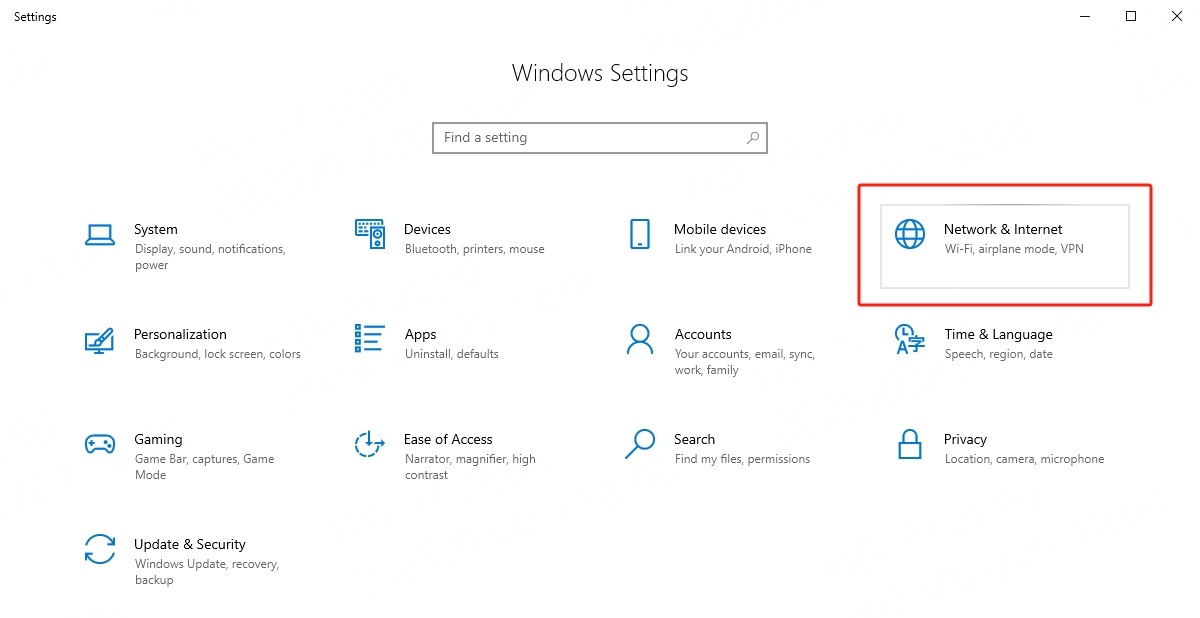
– In the Settings window, click on Network & Internet.
– This section allows you to manage connection settings, including Wi-Fi, Ethernet, and VPN options.
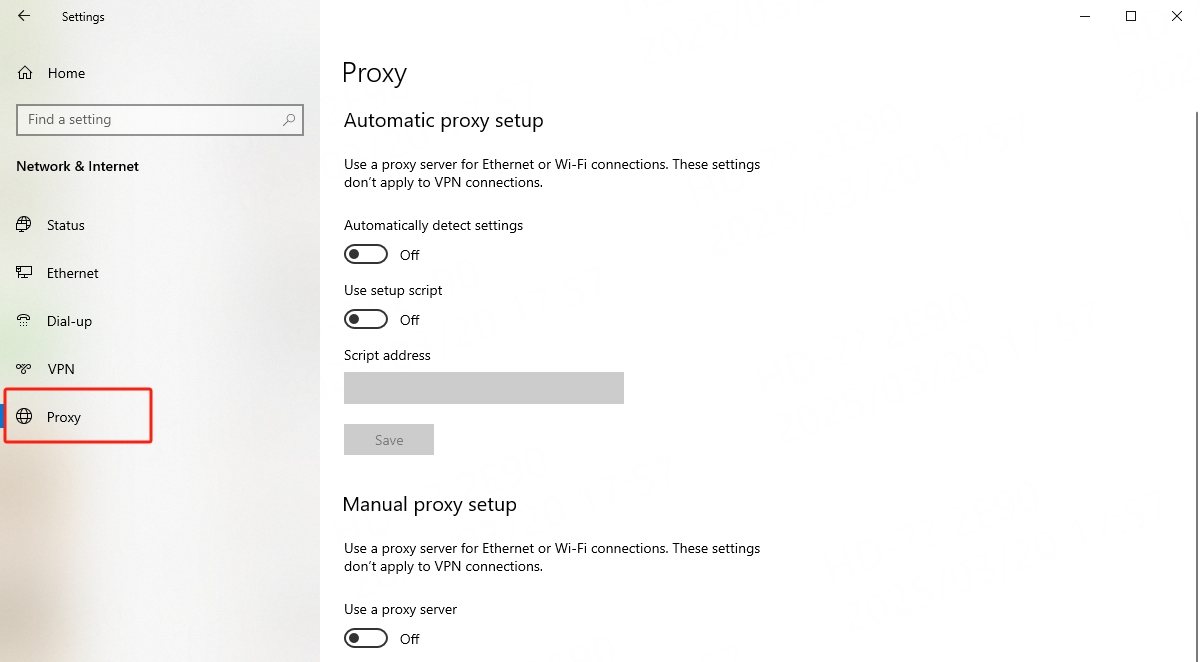
– From the left-hand menu, select Proxy.
– Here, you will see options for both automatic and manual proxy setup.
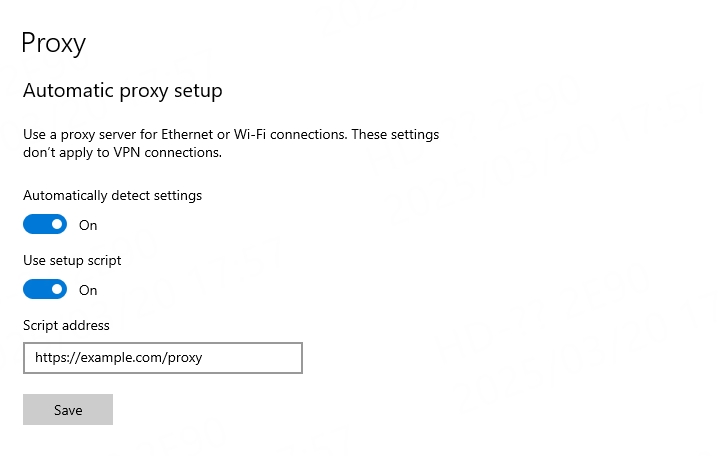
Auto Configuration – If you want Windows to automatically detect proxy settings based on your network environment, turn on the Automatically detect settings toggle switch.
Script Setup – If your organization provides a proxy configuration script, enable the Use setup script option and enter the script address (e.g., https://example.com/proxy).
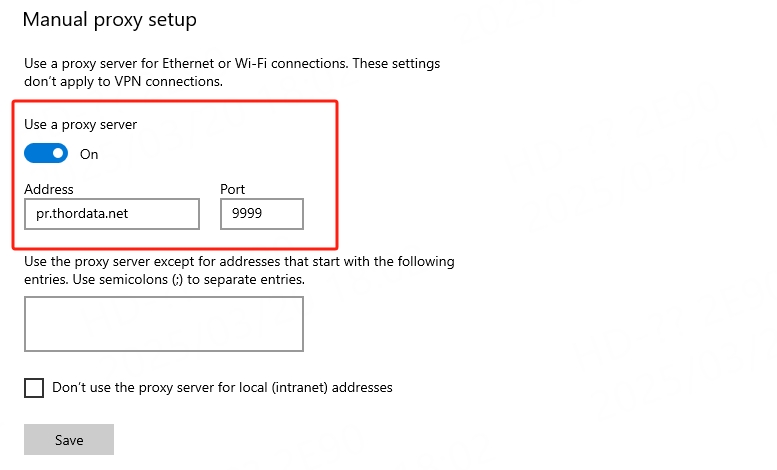
– Scroll down to the Manual proxy setup section.
– Toggle Use a proxy server to On.
– Enter the Proxy IP Address and Port:
In the Address field, type the proxy server’s IP address.
In the Port field, enter the port number.
– Bypass Proxy for Local Addresses: If you want to avoid using the proxy for local intranet addresses, check this box.
– Click Save to apply your settings.
Once configured, open your web browser and try accessing some websites.
If everything is set up correctly, your internet traffic should now be routed through your proxy server.
Double-check the IP Address and Port – Entering incorrect details can cause connection issues.
Consult Your IT Department – If you are using a corporate network, they may have specific proxy settings you need to follow.
Restart Your Computer – Sometimes, a reboot helps apply new settings effectively.
If your proxy isn’t working as expected, try these troubleshooting tips:
Check Your Proxy Server Details – Ensure you have entered the correct proxy address and port. If either is incorrect, your connection won’t work.
Disable Other Network Configurations – If you have multiple network settings (e.g., VPN), disable them to rule out conflicts.
Clear Browser Cache – If your proxy is set correctly but web pages are not loading properly, try clearing your browser cache or restarting the browser.
Check for Updates – Windows 10 and 11 receive frequent updates that improve network performance. Ensure your OS is up to date.
Setting up a proxy server in Windows 10 or 11 isn’t as complicated as it might seem. By following the steps outlined in this guide, you can ensure that your internet activities remain private and secure, giving you better control over your browsing experience. Remember to check your proxy settings regularly to ensure they remain correct and update your configuration as needed.
Frequently asked questions
How do I fix my proxy settings on Windows 10?
– Open Settings (press Windows key + I).
– Go to Network & Internet > Proxy.
– For automatic settings, ensure Automatically detect settings is turned on or that your script URL (if provided) is correct.
– For manual settings, check that the IP address and port are entered correctly.
If issues persist, you can reset the settings (for example, by turning the proxy off and then on again, or using the command netsh winhttp reset proxy in Command Prompt).
How do I find my proxy settings on Windows 10?
– Open Settings (press Windows key + I).
– Click on Network & Internet, then select Proxy on the left sidebar.
You will see both the automatic and manual proxy settings displayed.
How do I turn off my proxy settings?
– Open Settings (press Windows key + I).
– Navigate to Network & Internet > Proxy.
– Turn off the Automatically detect settings toggle.
– Under Manual proxy setup, switch Use a proxy server to Off.
About the author
Yulia is a dynamic content manager with extensive experience in social media, project management, and SEO content marketing. She is passionate about exploring new trends in technology and cybersecurity, especially in data privacy and encryption. In her free time, she enjoys relaxing with yoga and trying new dishes.
The thordata Blog offers all its content in its original form and solely for informational intent. We do not offer any guarantees regarding the information found on the thordata Blog or any external sites that it may direct you to. It is essential that you seek legal counsel and thoroughly examine the specific terms of service of any website before engaging in any scraping endeavors, or obtain a scraping permit if required.
 Looking for
Top-Tier Residential Proxies?您在寻找顶级高质量的住宅代理吗?
Looking for
Top-Tier Residential Proxies?您在寻找顶级高质量的住宅代理吗?
Java Scraping Timeout Fix: Proxy Optimization Guide
In Java web scraping developme ...
mia
2026-09-15

Test Thordata Residential Proxies Free: Get Up to 500MB for Your First Project
New users can test Thordata Re ...
greta
2026-09-11

Proxy IP Reputation and Clean IPs: Why a “Fresh” Proxy Still Gets Blocked
What decides a proxy IP’s repu ...
Chris
2026-09-11

Shared vs. Dedicated Proxies: When Exclusive IPs Are Worth the Extra Cost
Shared or dedicated proxies? H ...
Chris
2026-09-11

一千萬次無頭瀏覽器請求之後:一場壓力測試,以及 Thordata 與 Oxylabs 各自勝出的地方
JavaScript 密集的目標會擊垮簡單爬蟲,於是團隊升級 ...
Xyla Huxley
2026-09-11

1,000 美元能買到幾筆職缺?一個招聘數據分析團隊的實際計算
勞動市場情報是一門資料算術的生意——每美元採到最多職缺的團隊 ...
Xyla Huxley
2026-09-11

六週、六十億支影片:一個影片搜尋產品的建造日誌
打造一個影片搜尋產品——使用者輸入一句話,就能在數百萬支影片 ...
Xyla Huxley
2026-09-11

你的 AI Agent 讀文字讀得很漂亮,但它對其他一切是盲的
企業 AI Agent 的檢索語料以文字為主,而它們被問到的 ...
Xyla Huxley
2026-09-11

那支活了九天的仿冒商品:一次廣告驗證監控的完整事故复盘
一個品牌保護團隊的監控平台,在整個區域的仿冒品浪潮持續九天未 ...
Xyla Huxley
2026-09-11
