Automate your own news feed with a no-code workflow: pull Google News through the Thordata SERP API, turn the results into an email-ready digest, and have it in your inbox every morning.
Hands-on tutorial · ~15 min read · Built and verified on n8n 1.97 with n8n-nodes-thordata v0.1.3 (npm’s current 0.1.4 differs only in code comments, so the UI shown here is unchanged) · 简体中文
By the end of this tutorial you will have a news feed that actually runs: on your own n8n instance it searches Google News for the topics you care about, renders the results into a readable email digest, and delivers it on a schedule. No LLM, no agent, no guessing — the same input always produces a digest with the same structure (though not the same stories, because Google News changes daily), which keeps the pipeline predictable and easy to debug.
In this guide you will learn how to:
Run a self-hosted n8n instance
Install the n8n-nodes-thordata community node
Create a Thordata API credential and test it
Query Google News through the Thordata node
Shape the SERP response into a clean HTML digest with a Code node
Deliver the digest by email on a daily schedule
Extend the same workflow to any of the 34 supported search engines
Before you build anything, line up a self-hosted n8n instance, a Thordata API key for the search, and a mailbox to send to — any SMTP server will do, including a local one while you are testing. The community node itself is installed in the next section.
Note on hosting.n8n-nodes-thordata is an unverified community node. Unverified community nodes cannot be installed on n8n Cloud, so both installation paths below assume a self-hosted instance.
Launching n8n
The quickest self-hosted setup is Docker. Create a volume so your workflows and credentials survive a container restart, then start n8n:
GENERIC_TIMEZONE sets the instance timezone, and the workflow’s 09:00 schedule is evaluated in it — so set this to your own timezone, or you will get the digest at 09:00 UTC. The imported workflow does not carry a timezone of its own, so it always follows whatever the instance is set to.
n8n is then available at http://localhost:5678. The first visit asks you to create the owner account — that account is the instance Owner and is the one allowed to install community nodes.
If you run n8n from npm instead of Docker, npx n8n starts the same editor, and everything below works the same way.
Getting Your Thordata API Key
Sign in to the Thordata dashboard and copy an API key from your account (the node’s credential also links to doc.thordata.com). The node sends the key as a Bearer token on every SERP request, so keep it out of screenshots and shared workflows.
You do not need to configure an endpoint by hand. The node ships with the production SERP endpoint as the credential default:
Credential field
Value
API Key
Your Thordata API key (required, stored as a password field)
SERP Endpoint
https://scraperapi.thordata.com/request — leave the default unless Thordata support gives you a different one
Installing the Thordata Community Node
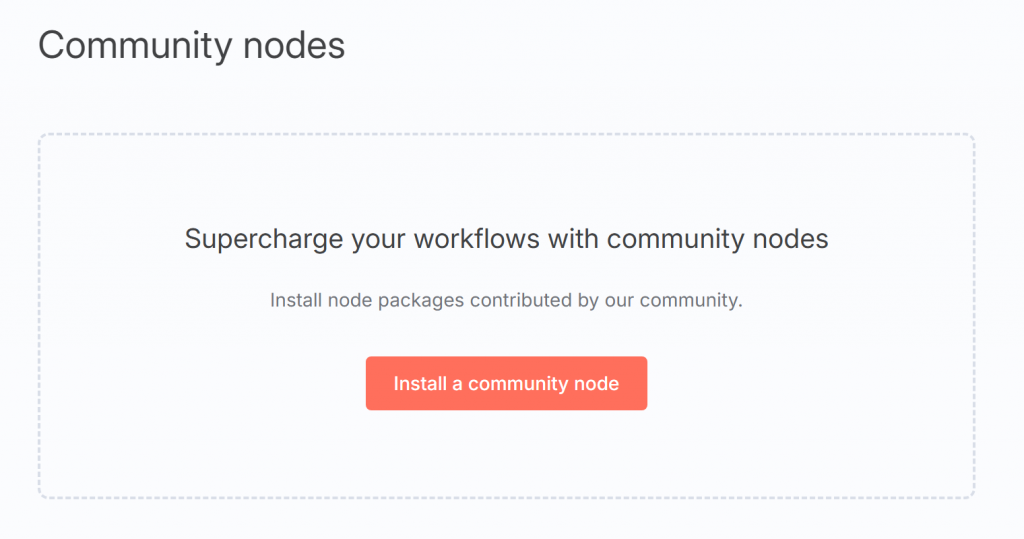
As the instance Owner, open Settings → Community nodes and select Install a community node.
The Community nodes page is where self-hosted admins add node packages that are not bundled with n8n.
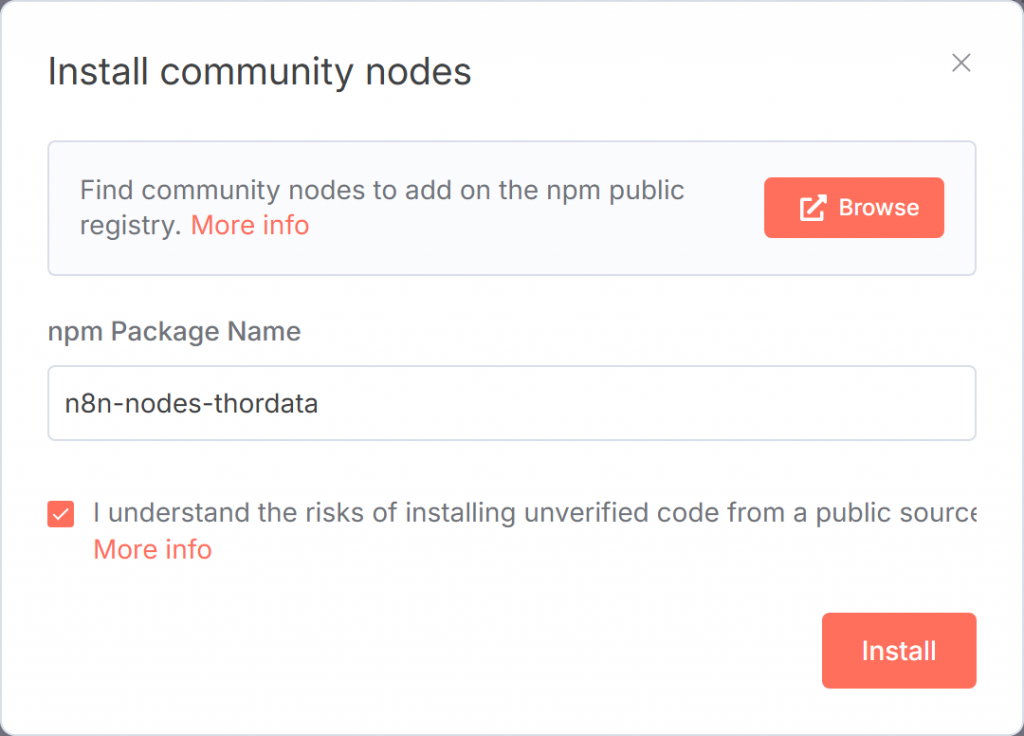
Enter n8n-nodes-thordata as the npm package name and tick the checkbox confirming you understand the risks of installing unverified code. The package is then downloaded from the npm public registry.
Type the package name exactly, then tick the checkbox confirming you understand the risks of installing unverified code — as shown here, the Install button only becomes clickable once it is ticked.
When the install finishes, the package is listed with its version and the nodes it contributes.
The package contributes one node, Thordata. The check next to the version number is n8n’s “you are up to date” marker, not a verified badge — community packages do not get one.
Manual installation (alternative)
If you prefer the command line, or you run n8n in a container where the GUI installer is unavailable, install the package into n8n’s nodes directory and restart n8n:
mkdir -p ~/.n8n/nodes
cd ~/.n8n/nodes
npm install n8n-nodes-thordata
Inside Docker, run those commands in the n8n container (for example after docker exec -it n8n sh) and make sure /home/node/.n8n/nodes lives on a persisted volume.
Creating the Thordata API Credential
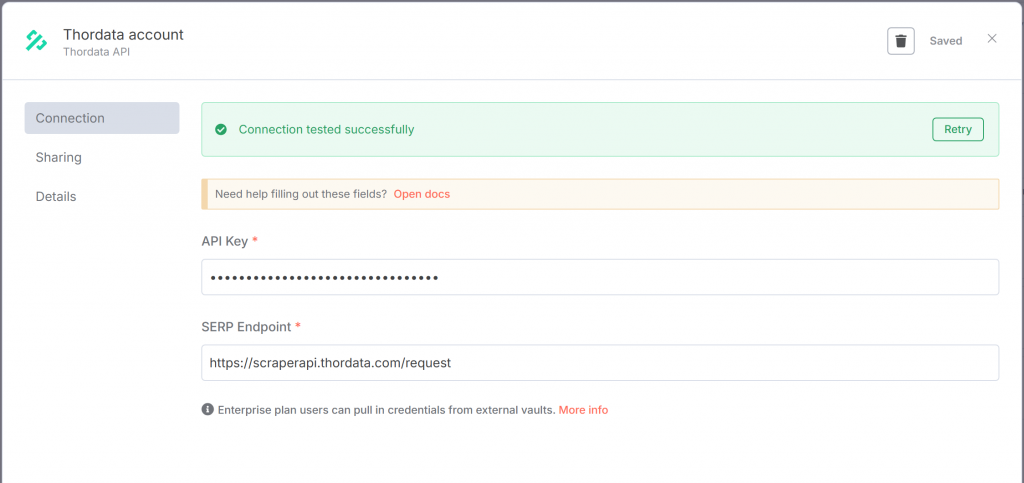
Open Credentials → Add credential, search for Thordata API, and paste your API key. Leave the SERP Endpoint at its default value.
Fill in the API Key and leave the remaining fields at their defaults. Changing the SERP endpoint is only necessary for an internal or development environment.
About the Test button. Selecting Test sends one minimal SERP request (engine=google&q=thordata&json=1&isjson=1) to the configured endpoint. A successful test consumes one credit from your Thordata balance.
Building the Workflow
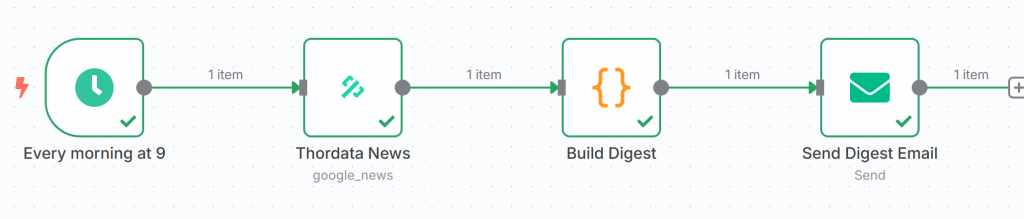
The workflow has four nodes. A schedule trigger wakes it up in the morning, the Thordata node fetches Google News, a Code node turns the response into an email-ready digest, and the last node sends it.
The finished workflow. Every node shows a green check and passes a single item to the next one.
1. Creating the Trigger
Add a Schedule Trigger node and open it. Set Trigger Interval to Days, leave Days Between Triggers at 1, and set Trigger at Hour to 9. The workflow now runs once a day at 09:00 in the instance timezone.
You can still run the workflow by hand at any time — the Execute workflow button works with a schedule trigger, which is how you will test it in a moment.
2. Adding the Thordata News Node
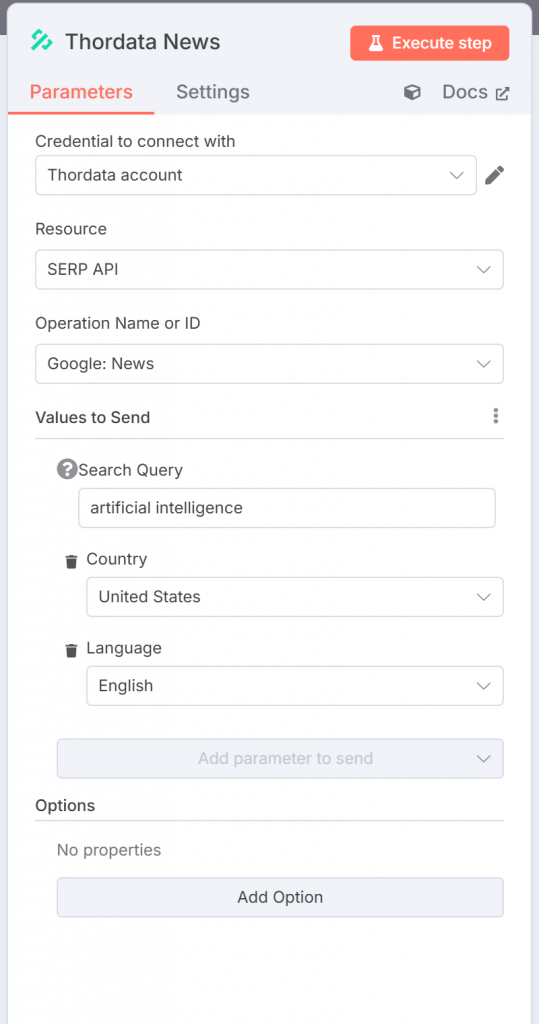
Add a Thordata node and connect the trigger to it. Then configure three things:
Credential to connect with — select the Thordata API credential you created.
Resource — select SERP API (in a later package version you may also see Dataset here).
Operation Name or ID — pick the search engine. Choose Google: News.
The operation list is loaded from the Thordata schema, so it always reflects the engines currently available on the platform — 34 of them at the time of writing, across Google, Bing, Yandex and DuckDuckGo.
Once an engine is selected, the Values to Send section fills in with the fields that engine actually accepts (the node definition calls this block Parameters, the editor labels it Values to Send). For Google News that is:
Parameter
What to set
Search Query
The topic to follow, for exampleartificial intelligence. Required.
Country
United States by default — controls the Google country (gl).
Language
English by default — controls the Google interface language (hl).
Fields the Thordata schema marks as hidden — the news topic and story tokens, publication and section tokens, sort order, the response format, caching and JS-rendering switches — are deliberately not shown in the editor. If you need one of them, the Options → Extra Parameters JSON collection sends extra parameters alongside the mapped ones.
The Thordata node after a run: credential, resource, engine and the three parameters Google News accepts.
Every successful run returns one item with a stable shape — the engine that was used, the query, the task id reported by the API, and the response body:
{
  "engine": "google_news",
  "query": "artificial intelligence",
  "taskId": "5LD5HHH154KR1790045117",
  "result": {
    "code": 200,
    "credits": 1,
    "news": [
      {
        "date": "9 hours ago",
        "image_url": "https://encrypted-tbn0.gstatic.com/images?q=tbn:...",
        "link": "https://openai.com/index/advisory-group-on-mathematics-and-ai/",
        "snippet": "OpenAI is working with an independent Advisory Group on Mathematics and Artificial Intelligence to guide the review and communication of...",
        "source": "OpenAI",
        "title": "Advisory Group on Mathematics and Artificial Intelligence"
      }
    ]
  }
}
The result object is the normalised SERP payload and is always JSON-safe, which is what makes the next step straightforward. A missing query comes back as null, and business errors — an invalid key, an unsupported engine — fail the node instead of being digested into the email. What the node cannot judge is whether the search was useful: a query with no matching stories still returns 200 with an empty news array, which is why the Code node below skips empty results rather than mailing a blank digest.
3. Shaping the Digest
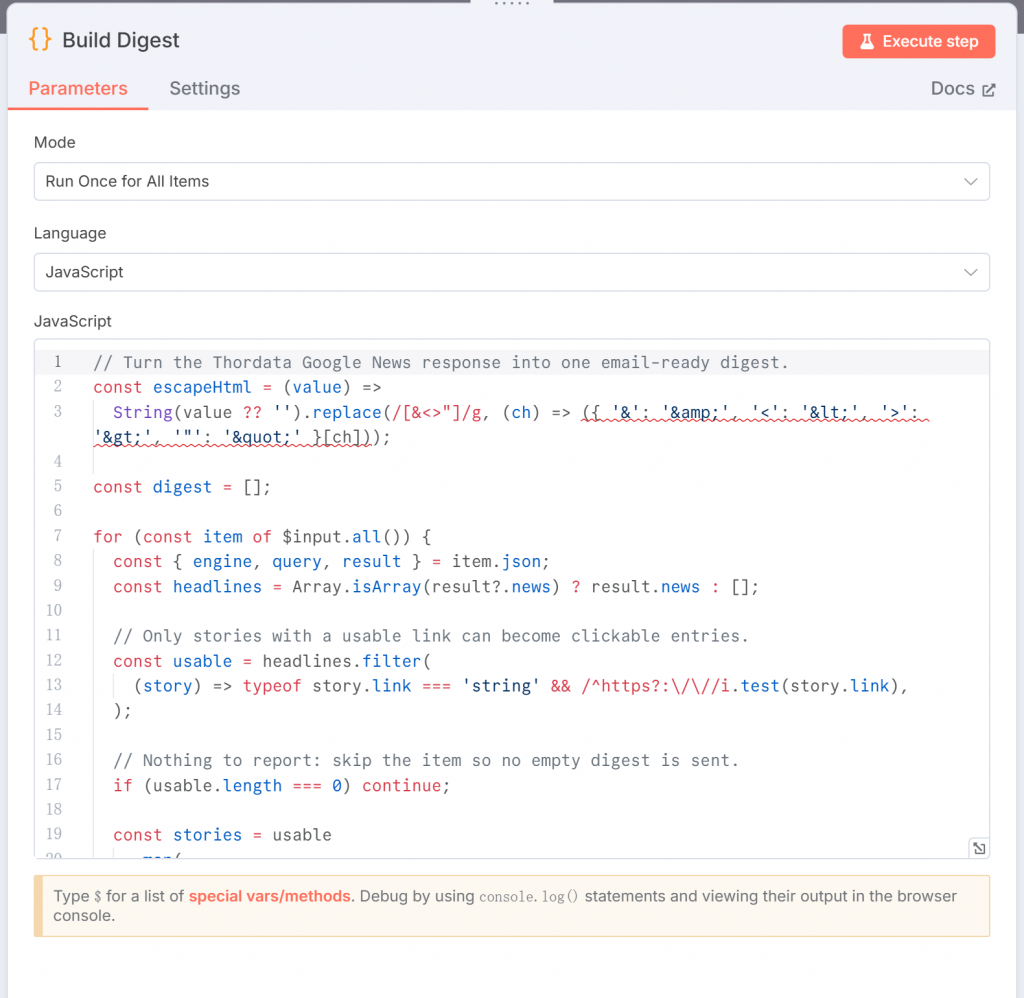
Add a Code node, connect the Thordata node to it, and keep the default mode Run Once for All Items. Paste this into the JavaScript box:
// Turn the Thordata Google News response into one email-ready digest.
const escapeHtml = (value) =>
  String(value ?? '').replace(/[&<>"]/g, (ch) => ({ '&': '&', '<': '<', '>': '>', '"': '"' }[ch]));

const digest = [];

for (const item of $input.all()) {
  const { engine, query, result } = item.json;
  const headlines = Array.isArray(result?.news) ? result.news : [];

  // Only stories with a usable link can become clickable entries.
  const usable = headlines.filter(
    (story) => typeof story.link === 'string' && /^https?:\/\//i.test(story.link),
  );

  // Nothing to report: skip the item so no empty digest is sent.
  if (usable.length === 0) continue;

  const stories = usable
    .map(
      (story) => `
        <tr>
          <td style="padding:0 0 18px;border-bottom:1px solid #ececec;">
            <a href="${escapeHtml(story.link)}" style="color:#e4572e;font-size:16px;font-weight:600;text-decoration:none;">${escapeHtml(story.title)}</a>
            <div style="color:#8a8a8a;font-size:12px;margin:4px 0 6px;">${escapeHtml(story.source)} · ${escapeHtml(story.date)}</div>
            <div style="color:#444;font-size:14px;line-height:1.5;">${escapeHtml(story.snippet)}</div>
          </td>
        </tr>`,
    )
    .join('');

  // Keep quotes and line breaks out of the subject line.
  const topic = String(query ?? '').replace(/["\r\n]/g, ' ').trim() || 'your query';
  const label = usable.length === 1 ? 'headline' : 'headlines';

  digest.push({
    json: {
      subject: `${usable.length} ${label} on "${topic}"`,
      headlineCount: usable.length,
      engine,
      html: `<div style="font-family:Arial,Helvetica,sans-serif;max-width:640px;margin:0 auto;">
  <h1 style="font-size:22px;color:#111;margin:0 0 4px;">Thordata news digest</h1>
  <p style="color:#666;font-size:13px;margin:0 0 20px;">Top stories for <strong>${escapeHtml(topic)}</strong>, collected through the ${escapeHtml(engine)} engine.</p>
  <table role="presentation" width="100%" cellpadding="0" cellspacing="0">${stories}</table>
</div>`,
    },
  });
}

return digest;
The node now emits one item carrying subject, headlineCount, engine and html. Keeping the formatting in a Code node rather than in the email node means you can reuse the same digest for Slack, a file, or a Google Sheet later without touching the search step.
Two guards are worth noting, because they cover things the search step can return without failing: stories whose link is missing are dropped, and a response with no usable story at all emits no item — so the email step is skipped instead of sending a blank digest. If you would rather be told that a query returned nothing, add an IF node after the Code node and route the empty case to an alert.
About the red underlines. The editor’s code highlighter marks parts of the escapeHtml regular expression as if they were broken HTML tags. It is a false positive — the regular expression is valid and the code runs, which is how the email further down was produced. If it bothers you, replace the character class with String.fromCharCode equivalents or move the escaping into a Function node.
The Code node reads result.news from the Thordata node and returns the four digest fields.
4. Emailing the Digest
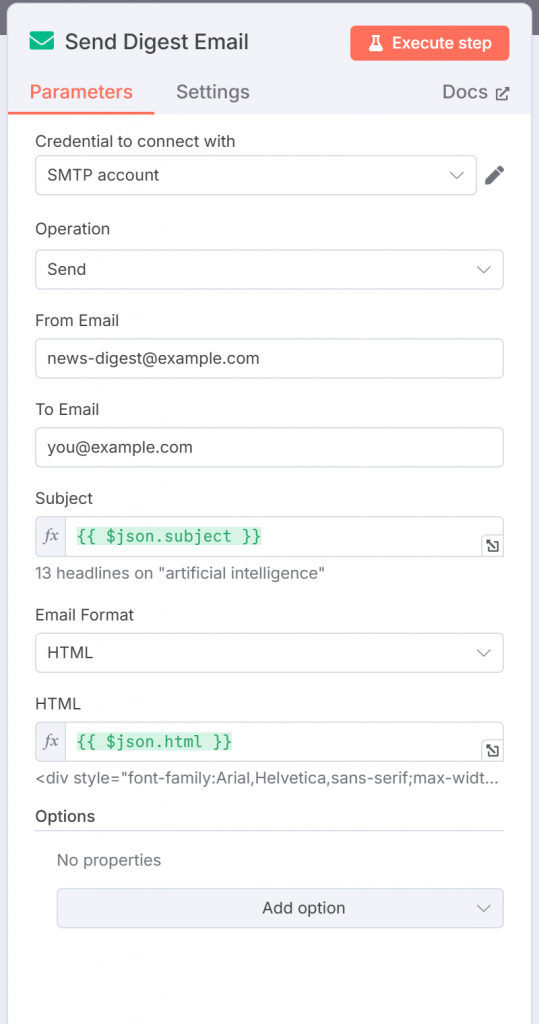
Add a Send Email node and connect the Code node to it. Fill in the address fields and map the two fields the Code node produced:
Field
Value
Operation
Send (the default)
From Email
The sender address your SMTP server accepts
To Email
Where you want the digest delivered
Subject
{{ $json.subject }}
Email Format
HTML
HTML
{{ $json.html }}
Then attach an SMTP credential with your mail provider’s host, port and login. For a quick test without touching a real mailbox, point the credential at any local SMTP server — the credential supports disabling TLS and STARTTLS, which is what a local test server needs.
Subject and HTML are bound to expressions, so the node needs no changes when the query or the headline count changes.
Running the Workflow
Press Execute workflow. The trigger, the Thordata request, the digest and the email all run in order, and each node reports the number of items it passed on.
If you want to inspect the raw SERP response, open the Thordata node and switch the output panel to JSON — that is the quickest way to see which fields a new engine gives you before you map them in the Code node.
The delivered digest. Each entry links to the original article and carries the source and a relative timestamp.
The workflow is now ready to be switched on. Flip the Inactive toggle in the top bar to active and n8n will run it every morning at 09:00 in the instance timezone — no browser tab required.
Importing the finished workflow
The thordata-news-digest.json file next to this page is the workflow exactly as built above. Bring it in through Import from File, then open Thordata News and Send Digest Email once each: the file deliberately ships without credentials, so both show an empty Credential to connect with field until you pick the two credentials you created. Nothing else needs configuring — the workflow carries no timezone of its own, so its 09:00 trigger follows your instance.
Taking It Further
Follow a different beat
The engine list is the only thing that changes. Swap Operation Name or ID to Google: Search for web results, Bing: News for a second news source, Google: Scholar Search for papers, or Google: Trends for interest-over-time data. The mapped parameters follow the engine, so a Flights query asks for departure_id while a Lens query asks for a url.
Send parameters the editor hides
The Thordata schema separates fields that are safe to show in a no-code editor from the long tail of provider options. Anything hidden is still reachable through Options → Extra Parameters JSON:
{
  "no_cache": true,
  "so": "1"
}
Here no_cache bypasses the Thordata response cache and so switches Google News from sorting by relevance ("0", the default) to sorting by date ("1").
Values you put here override the mapped parameters, with two protected exceptions: engine and isjson are always fixed by the node. That guarantees you never accidentally break the response format the rest of the workflow depends on.
Fan out over several queries
Turn the code node into a per-item step (Run Once for Each Item) and put an Edit Fields or Split Out node in front of the Thordata node holding a list of queries. Each query becomes its own SERP request, and the digest step can either merge them into one email or send one email per topic. Remember that every request consumes a credit.
Add an LLM stage
This workflow is deliberately deterministic, but the same shape carries an LLM well. Drop a Basic LLM Chain between Build Digest and Send Digest Email, feed it the headline list, and ask for a two-sentence summary at the top of the digest; or attach the Thordata node itself to an AI Agent and let the model choose the queries. Either way, keep the deterministic steps where they are — the search and the formatting — and let the model only rewrite what it was given. A model that invents headlines is worse than no model at all.
The example digest above shows two things a deterministic pipeline cannot judge. Four of its thirteen entries are the same story reported by different outlets, and one of them — a Washington Post cartoon — carries a snippet made of page furniture and a promotional line (“Make us preferred on Google”) rather than a summary of the article. Both are normal output from a news search, and neither is a bug in the workflow: the pipeline faithfully renders what it was given. Telling a real headline from a cartoon caption, and collapsing four versions of one story into one, is exactly the part worth handing to a model.
Use Thordata as a tool inside an AI Agent
The Thordata node declares usableAsTool, so it can be attached to an AI Agent node’s tool input instead of being wired into the main flow. The agent then decides when to search and with which query. Keep the parameters you want the model to control exposed, and pin the rest — an agent that can choose its own country and language is useful, one that can choose its own endpoint is a support ticket waiting to happen.
Handle failures deliberately
Open the Thordata node’s Settings tab and set On Error to Continue (using error output). A failed SERP request then arrives as a separate item instead of stopping the run, which lets you send the digest for the queries that succeeded and raise an alert for the ones that did not.
Conclusion
Pairing n8n with Thordata’s SERP API gives you a news feed built on two things you control: the workflow runs on your own instance, and the data is fetched live on every execution. The four-node shape is small enough to read at a glance, and every part of it is swappable — change the engine, the query, the digest template or the destination without touching the rest.
The same shape reaches well past news. The Thordata node exposes the platform’s whole engine catalogue, so those four nodes can also track shopping results, scholarly papers, search trends or local listings. And because the node declares usableAsTool, it can be handed to an AI agent when you want the model to choose the queries itself.
To point it at your own account, create an API key in the Thordata dashboard and keep doc.thordata.com open for the parameter reference — it documents what each of the 34 engines accepts. The finished workflow and every screenshot used above are in this folder.
Screenshots are captured at 2× (retina) resolution from a self-hosted n8n 1.97.1 instance with n8n-nodes-thordata v0.1.3 installed from the npm public registry, running against the Thordata production SERP endpoint. The workflow was executed end to end and the digest shown above is the email that run produced.













 Looking for
Top-Tier Residential Proxies?